Desktop Outlook
Configuring Outlook for Faculty/Staff
Up to date versions of Microsoft Outlook are available on all UMKC issued computers as well as free to download to personal devices for eligible faculty and staff. It is strongly recommended that faculty and staff access email via an up-to-date version of Outlook, or via Outlook Web Access in a web browser.
- For UMKC issued computers, Outlook should already be installed as part of the Office Suite. If it is not, please contact the Technology Support Center for assistance installing.
- For personal computers, the Outlook application is available as part of Microsoft 365 ProPlus.
1. Open Outlook on your computer.
2. Click on File.
3. Click Add Account.
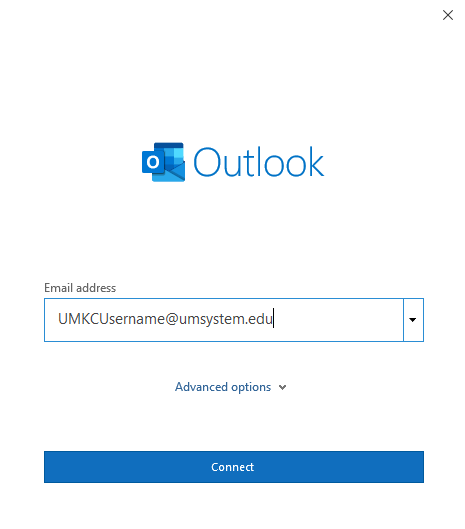
4. Give the account a name. Enter your UMKC email address in the format UMKCUsername@umsystem.edu.
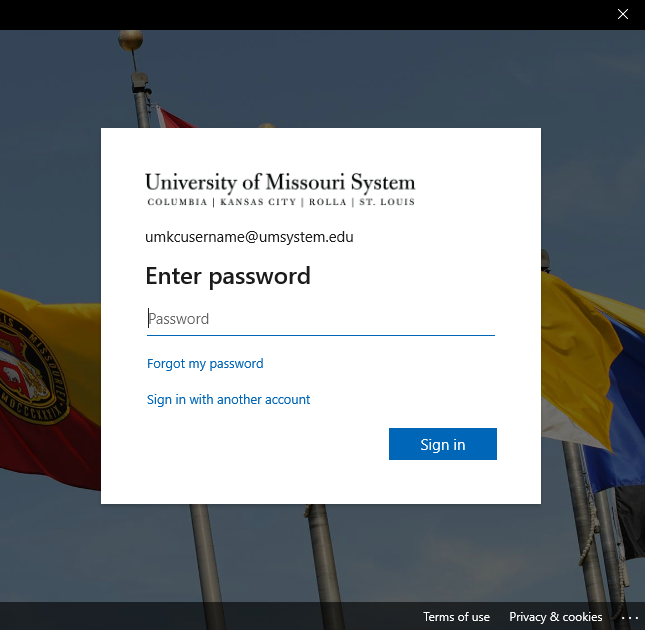
5. Enter your UMKC password and click Sign in.

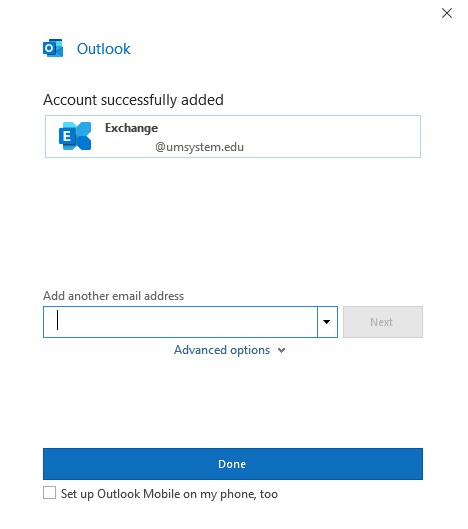
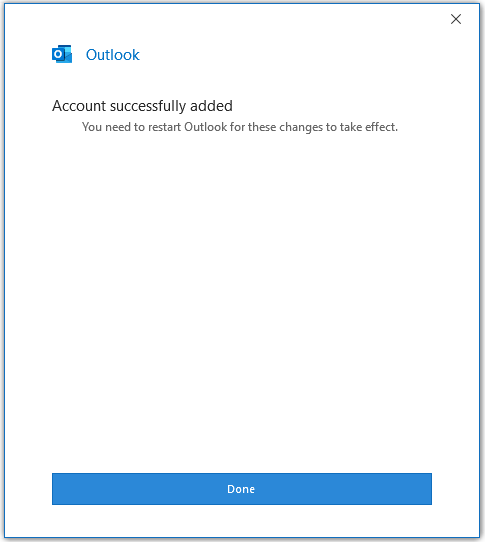
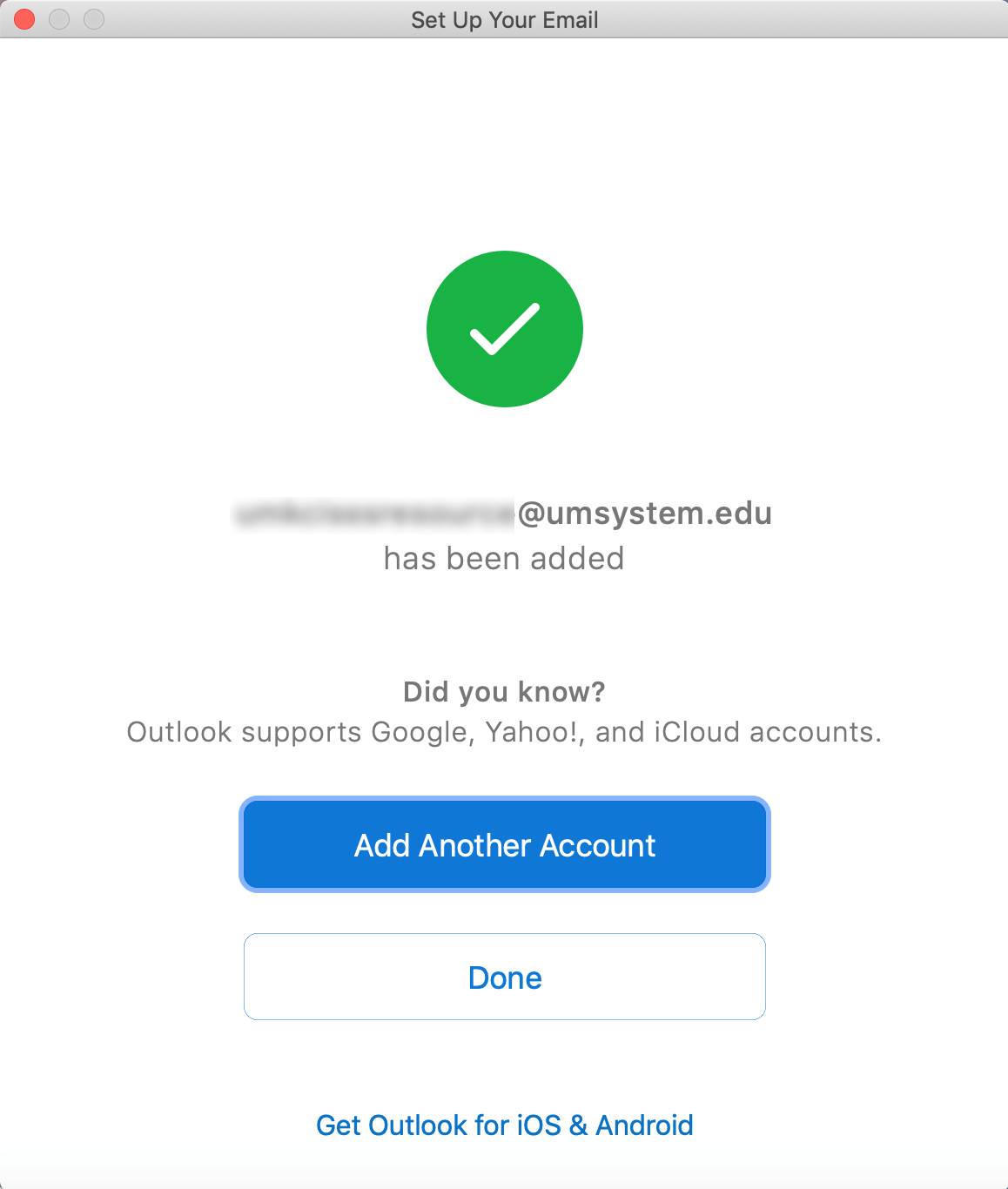
Click Done to complete the setup. Please allow some time for your emails to download.
1. Launch Microsoft Outlook from the
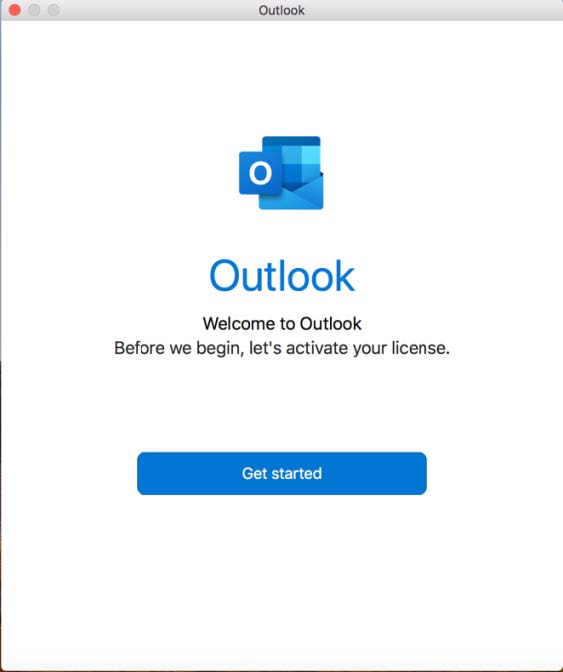
2. Click Get Started.
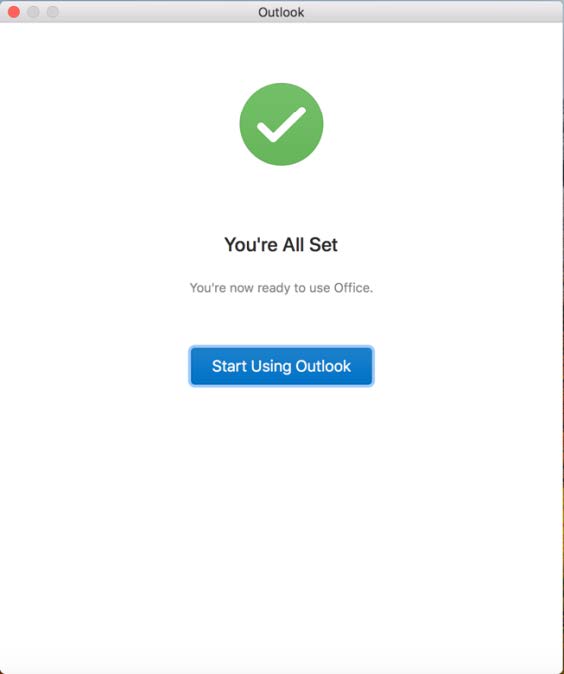
3. Click Start Using Outlook.
4. Accept the Microsoft Privacy statement if prompted.
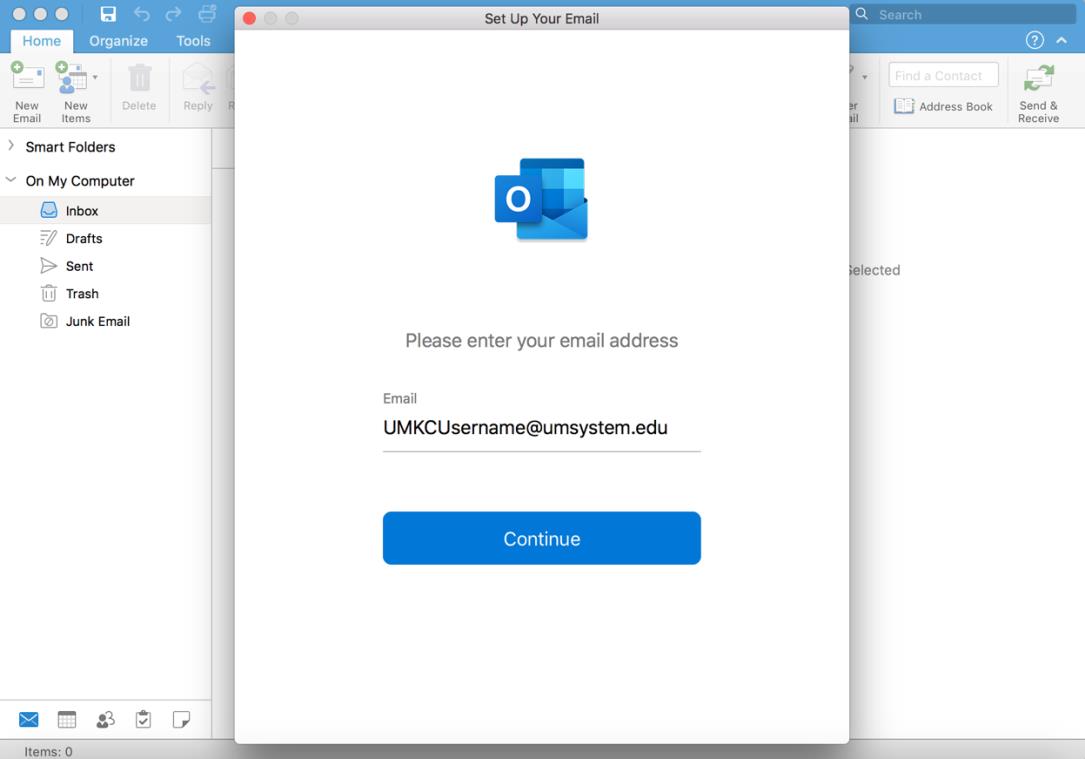
5. Enter your UMKC email address in the format UMKCUsername@umsystem.edu 
6. Verify the following account settings:
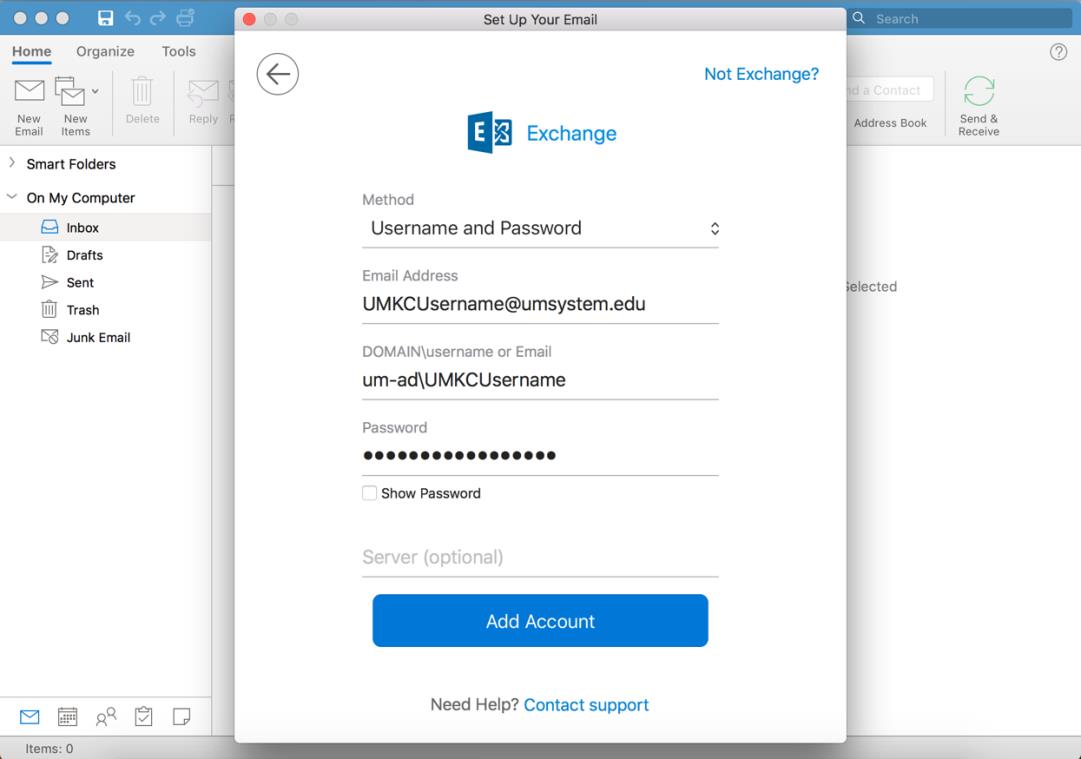
Method: Username and Password
Email Address: UMKCUsername@umsystem.edu
Domain: um-ad\UMKCUsername
Password: Your UMKC password
Click Add Account.

7. Click Done to complete the setup. Please allow some time for your emails to download.
1. Open Outlook on your computer.
2. Click on File.
3. Click Add Account.
4. Enter the Resource account email email address in the format ResourceAccountName@umsystem.edu.
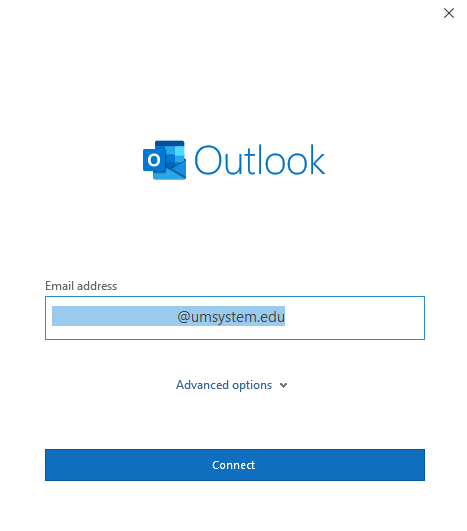
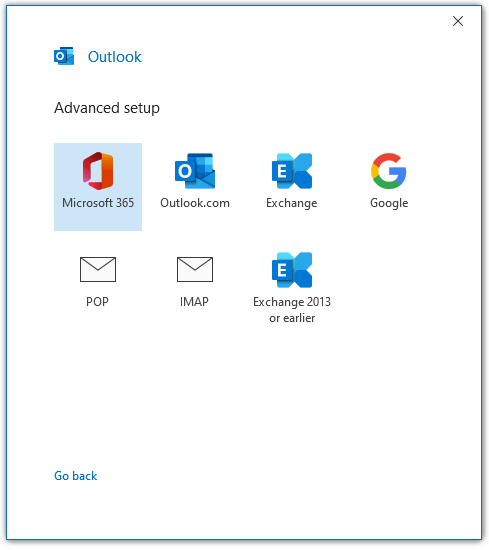
5.Choose Microsoft 365 as the account type.

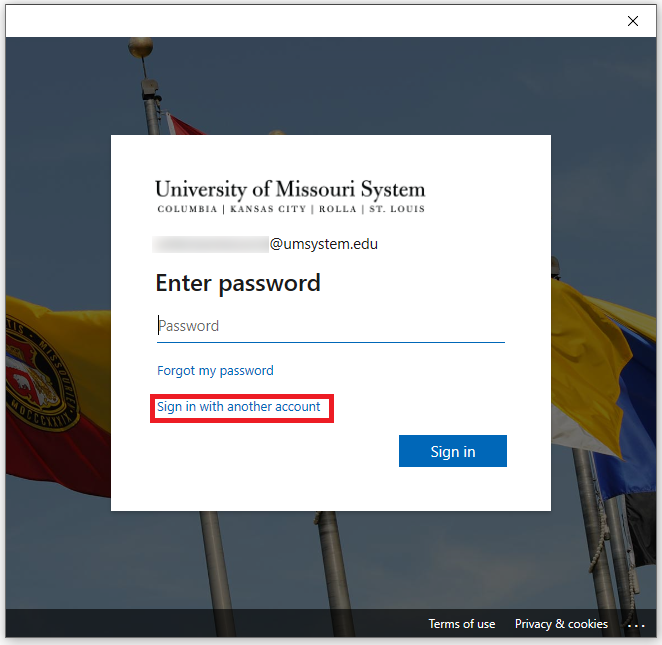
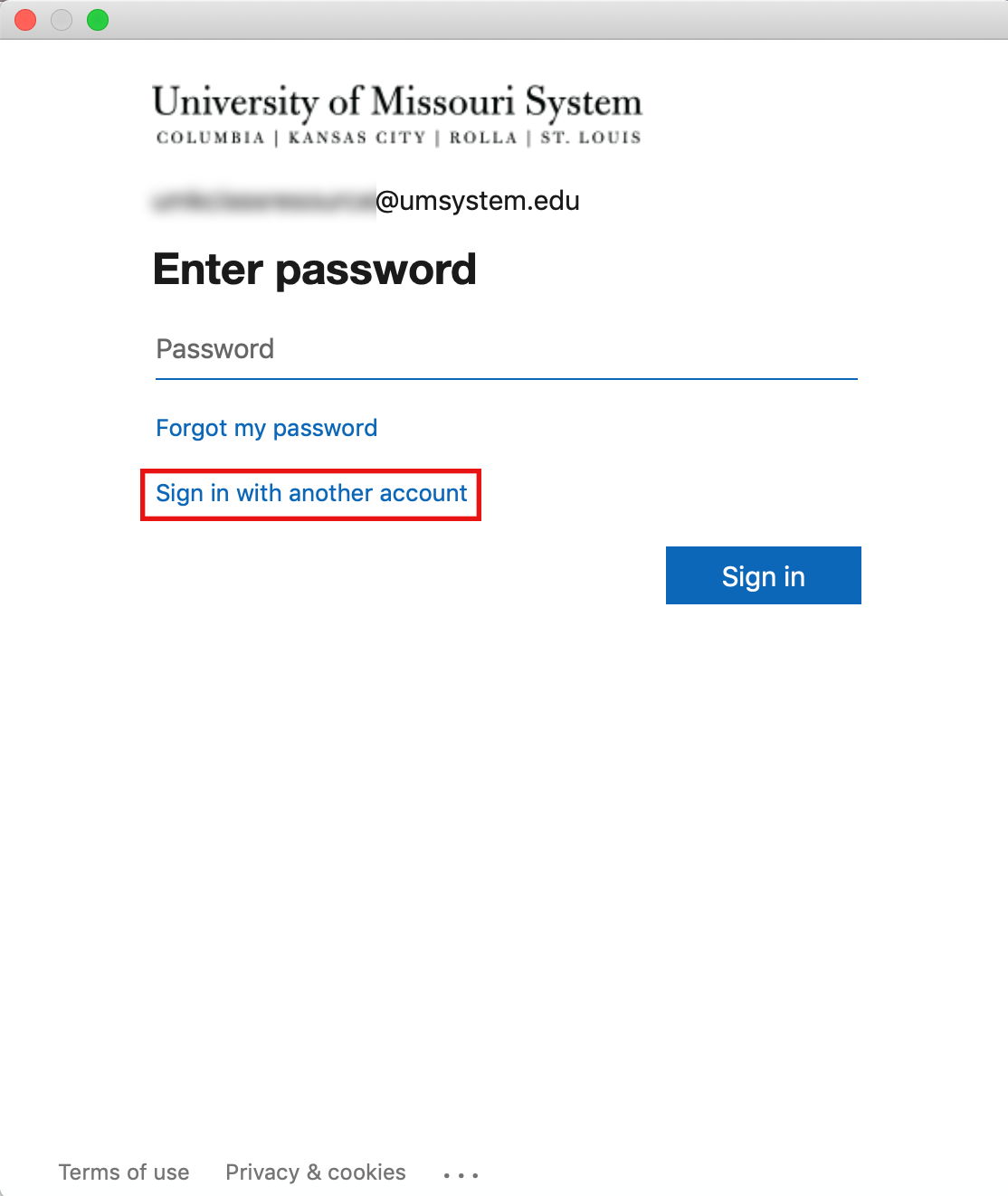
6. At the password prompt click Sign in with another account.

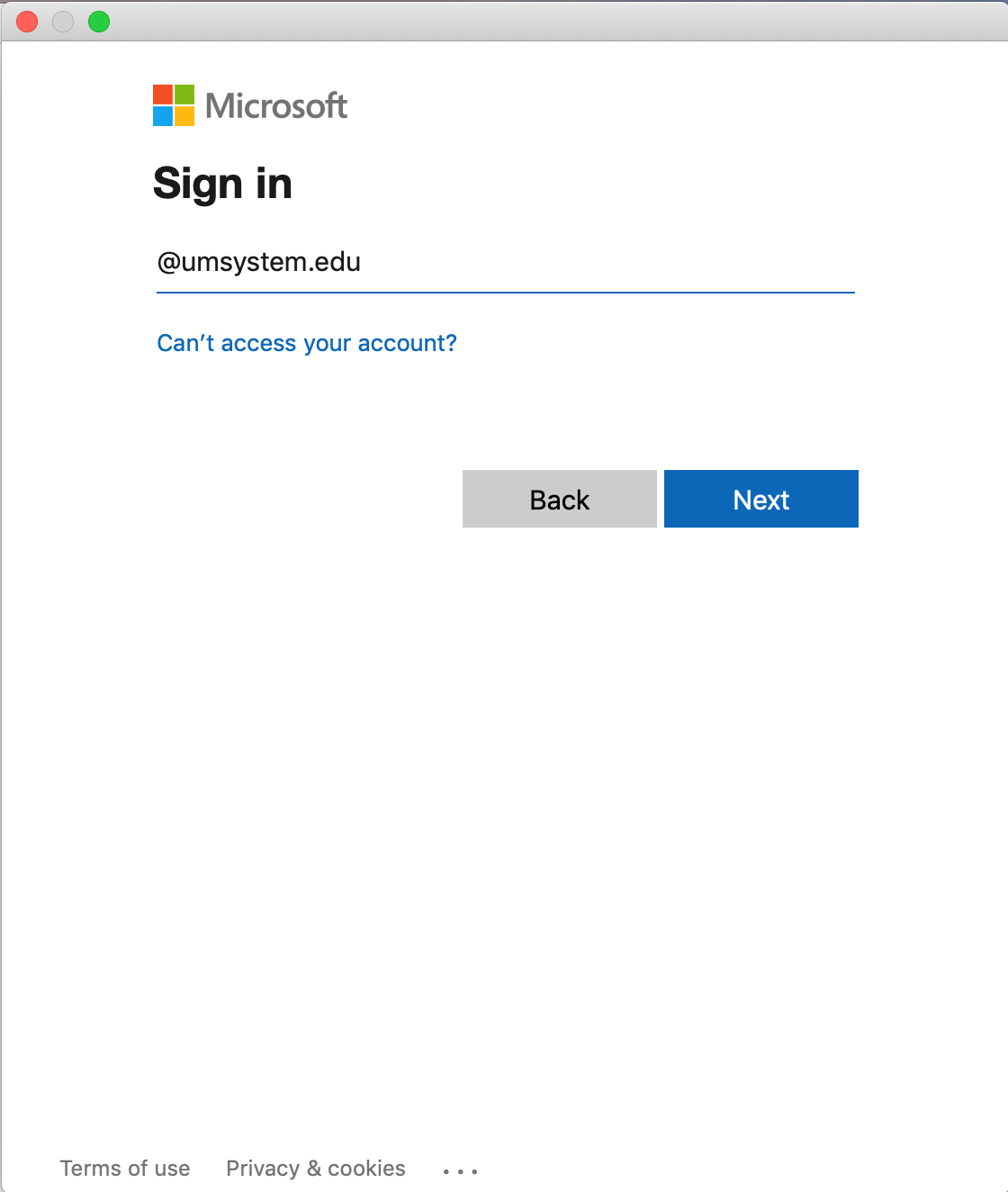
7. Enter your UMKC email address in the format UMKCUsername@umsystem.edu
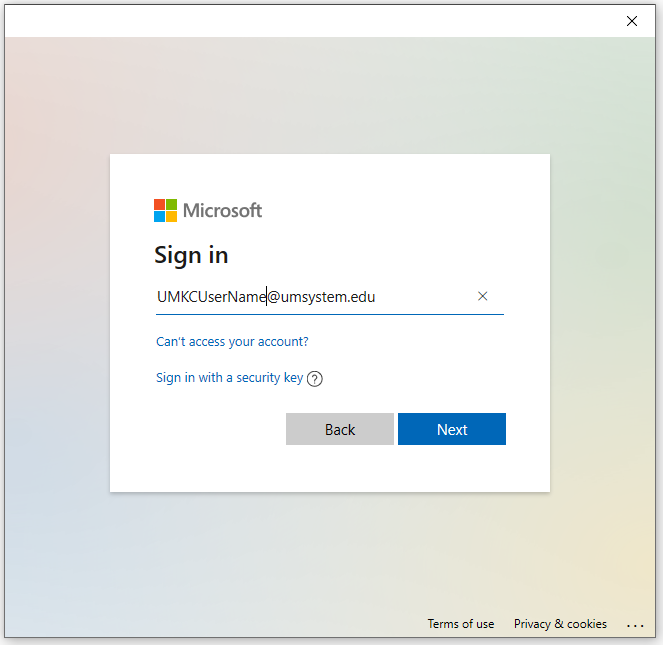
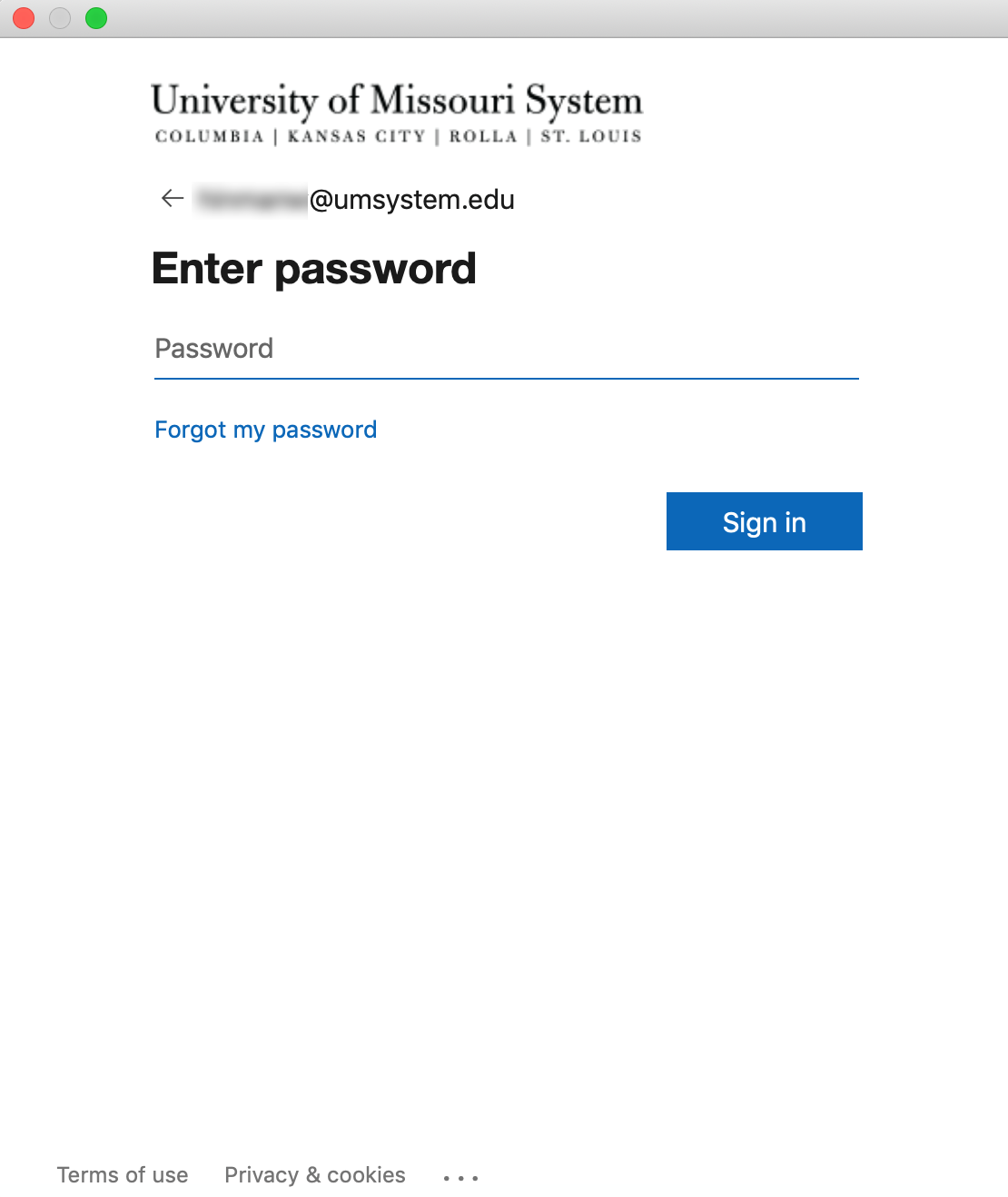
8. Enter your UMKC password.
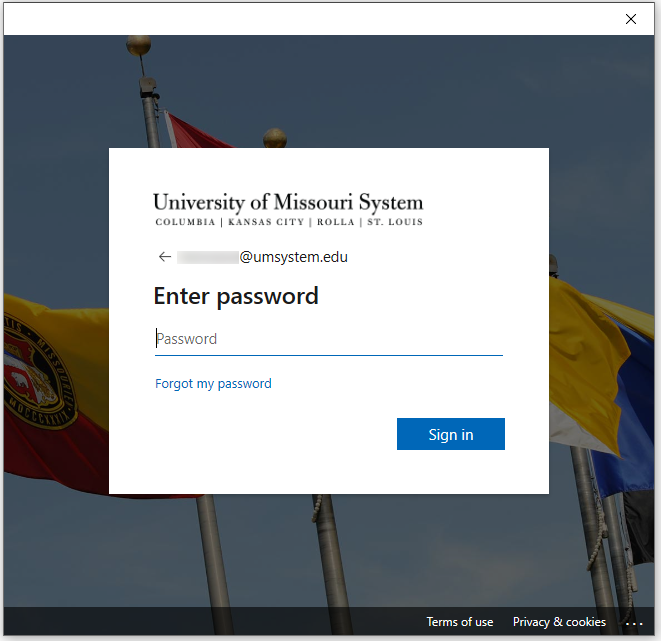
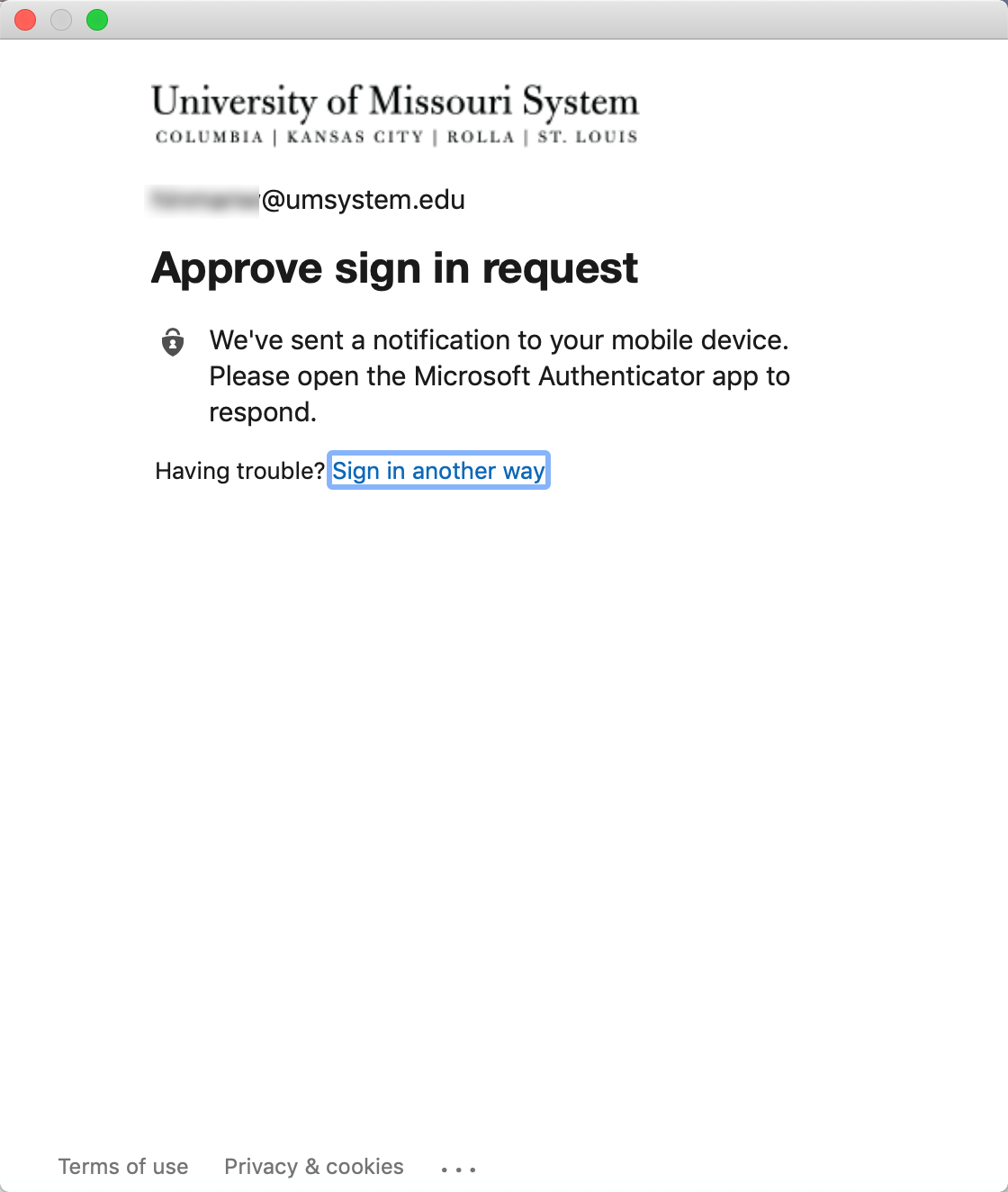
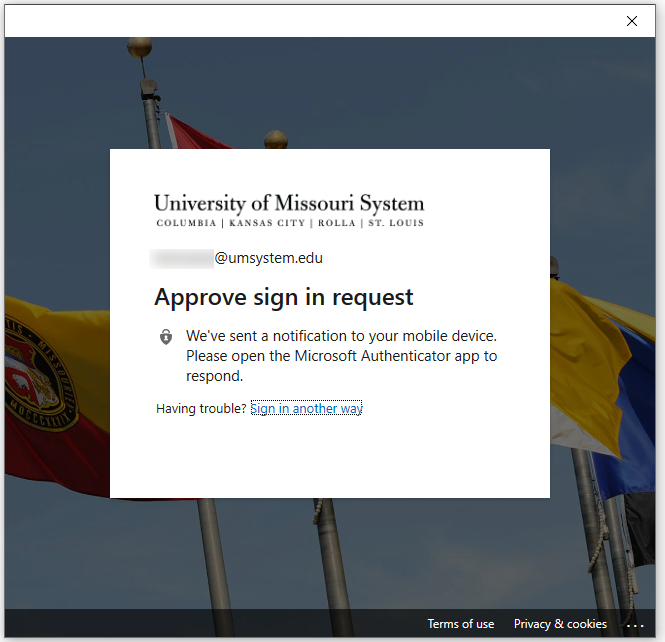
9. Approve or verify your account using MFA
1. Open Outlook on your computer.
2. Open the Outlook menu.
3. Choose Preferences....
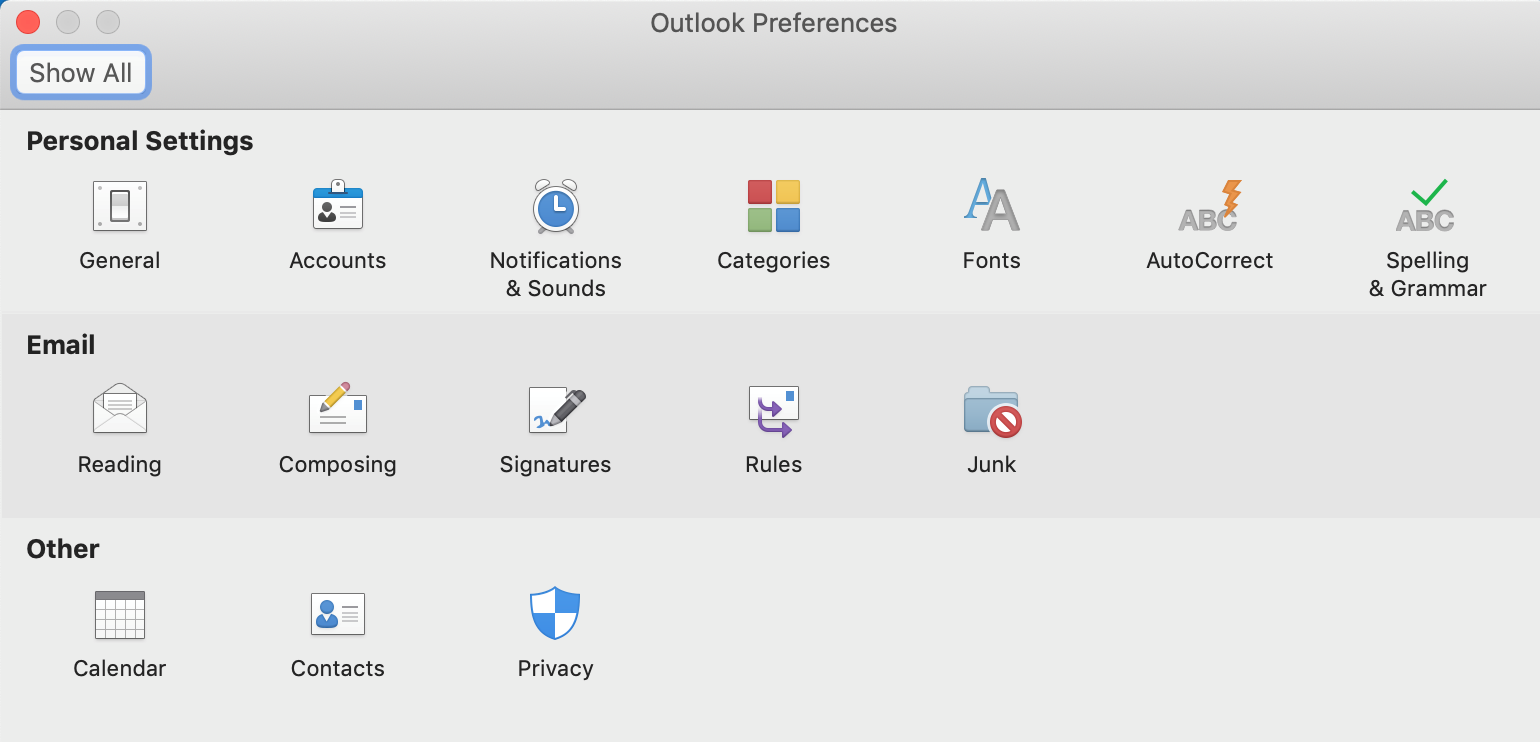
4. From the Outlook Preferences window choose Accounts.
5. Click the + and choose New account....
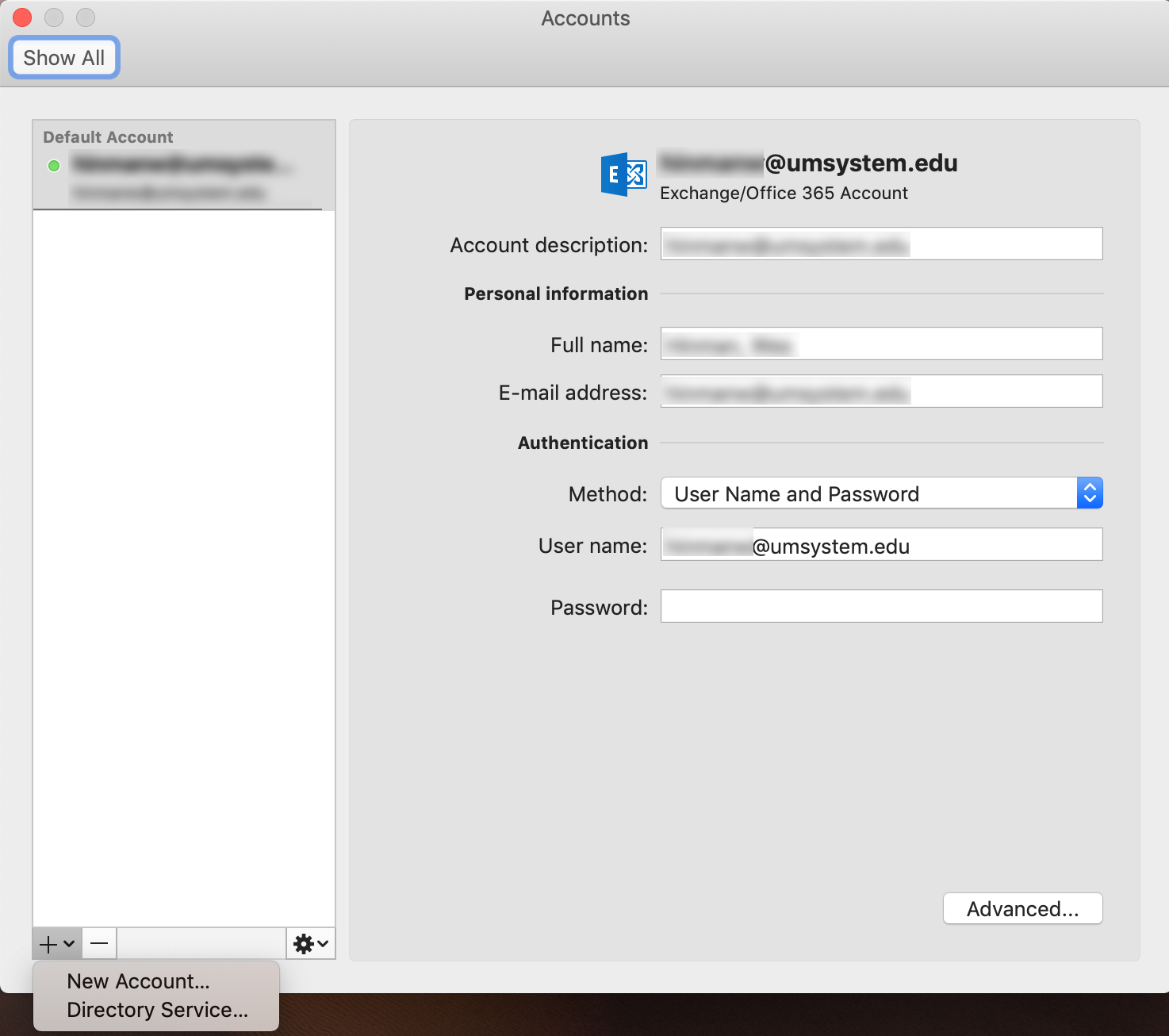
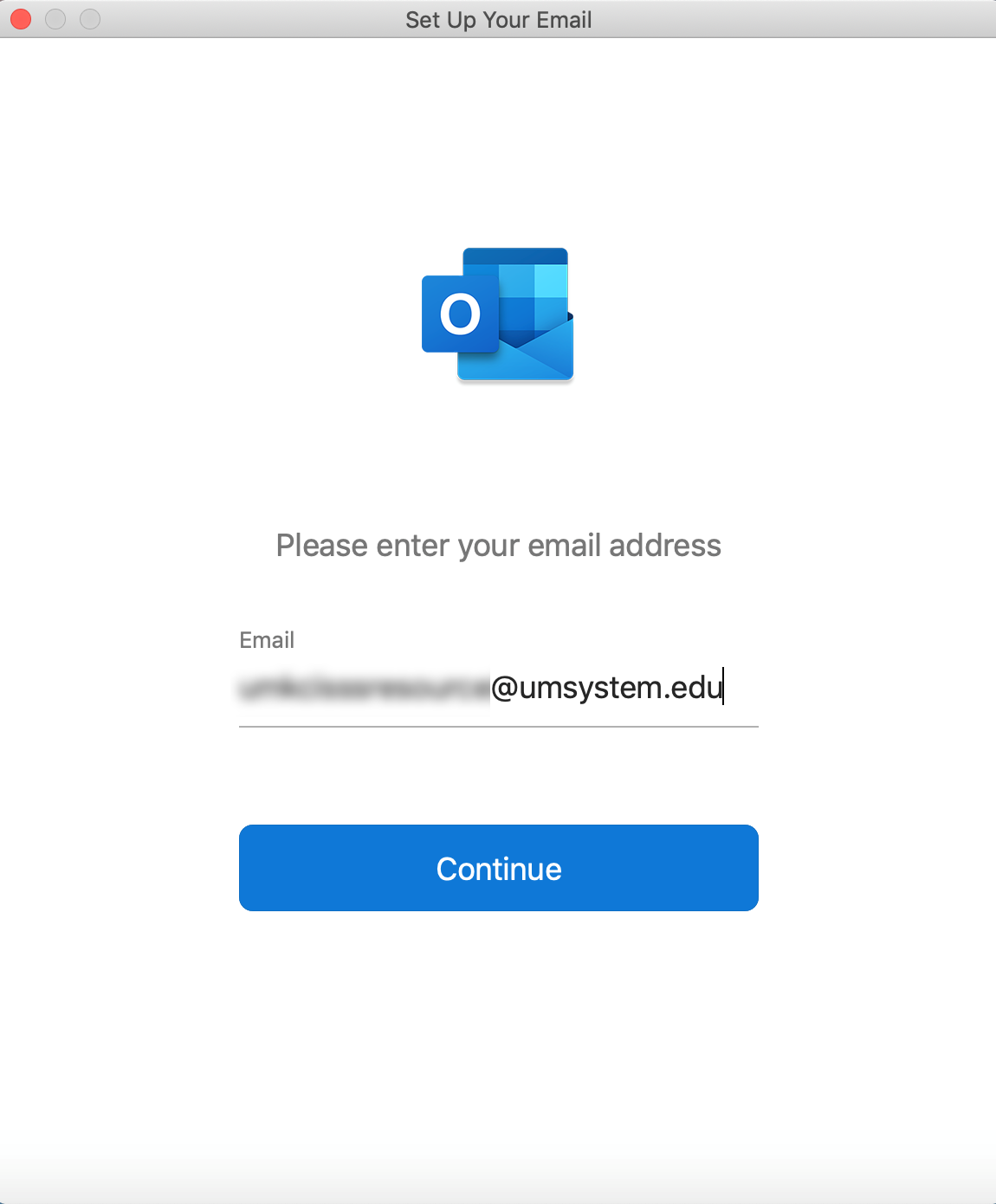
6. Enter the resource account name in the format AccountName@umsystem.edu.
7. Choose Sign in with another account.
8. Enter your UMKC email address in the format UMKCUsername@umsystem.edu
9. Enter your UMKC password.
10. Approve or verify your account using MFA