Microsoft 365 (M365) provides a suite of cloud-based software as a service that complement educational and business environments. Many of the products are free of charge, and similar to other no-cost product offerings, they can frequently change. These products do not replace existing offerings but provide additional tools that are available online.
For real time service status please visit: https://portal.office.com/servicestatus.
Products and Services
All products are available in the Microsoft 365 portal at https://portal.office.com. Sign in with your UMKC username and password.
- Bookings
- Forms
- OneDrive - cloud service that connects you to all your files. It lets you store and protect your files, share them with others, and access them from anywhere on all your devices
- Planner
- Power Automate*
- PowerBi*
- PowerApps*
- Project Online*
- Stream
- Sway
- Teams
- ToDo
- Whiteboard
*Note, products marked with an asterisk may have a cost involved.
Office ProPlus
Active faculty and staff and currently enrolled students are able to download, install, and use Microsoft Office 365 ProPlus applications on desktop and laptop computers, free of charge. Please note:
- Microsoft Office 365 ProPlus is only available to active faculty and staff and currently enrolled students.
- The Microsoft Office 365 ProPlus software may be installed on up to five devices (desktop and laptop computers only) simultaneously. Mobile devices do not count against this limit.
- Once you are no longer an enrolled student or active employee at UMKC, the free license to use the Microsoft Office 365 ProPlus software ends, and you will have to purchase a software license from Microsoft or a retailer for continued use. Former students can continue to use their Office 365 email accounts for up to one year.
As an enrolled student or active faculty or staff, you will be able to download the following Microsoft Office applications.
- Word
- Excel
- PowerPoint
- Outlook
- OneNote
- Publisher*
- Access*
*Publisher and Access are available for PC only.
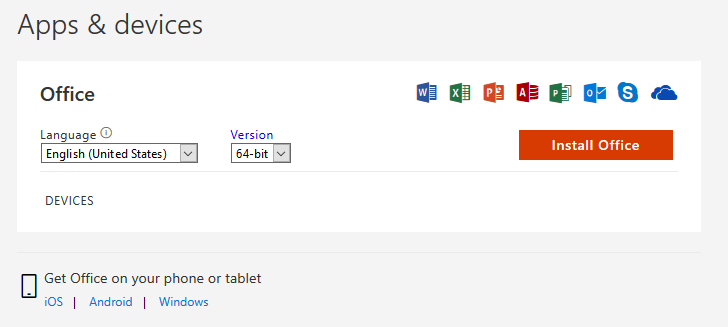
- Log into your Microsoft 365 account at https://aka.ms/office-install.
- Click Install Office
- The installation package will download and run on your computer. After you run the installer, you will need to accept the license terms, and enter your UM System credentials to continue with the installation.
- You can download and install the software on up to five laptop and desktop computers. You can deactivate specific computers from the Office software settings screen within your Office 365 account (the same screen where you initiate software download and installation).

For Apple and Android devices, you can install the Microsoft Office Mobile apps to create Office documents (Word, Excel, and PowerPoint):
- The individual office apps are available for download from either the App Store (Apple) or the Play Store (Android)
- Once installed and launched, tap the Get Started button
- Enter your Microsoft 365 account name
- Choose Organizational Account
- Log into your UM System Microsoft 365 account
- Office Mobile will configure on your mobile device
Once you have enrolled in courses, automated scripts will enable your Office 365 ProPlus license. This may take up to 24 hours after enrollment.
When you graduate or are no longer eligible to enroll in courses, the license will be deactivated. You will still be able to use your account for email for up to one year, but your Office 365 ProPlus license will expire and the Microsoft Office applications will become unusable. It may take up to 30 days for the software to deactivate. At that time, the software should prompt you to purchase a personal license for continued use.
You can install the Office 365 ProPlus software on up to five computers (mobile devices don't count against this limit).
To install on a sixth device, you have to remove one of your older activations. This won't remove the software, but it will disable the software on that device and free up a slot for your new activation.
To view/edit your devices:
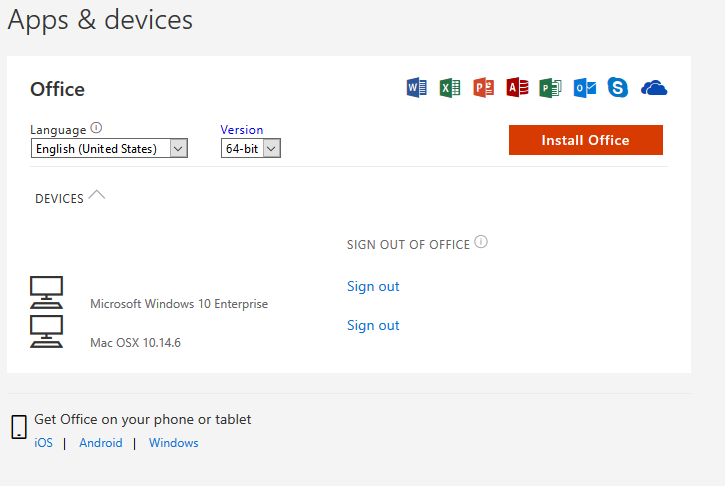
- Log into your Microsoft 365 account at https://aka.ms/office-install.
- Click the arrow next to "Devices" to expand the list.
- To remove inactive clients from your list, click "Sign Out" next to the computer you want to remove. That will free up a slot to register a new computer.